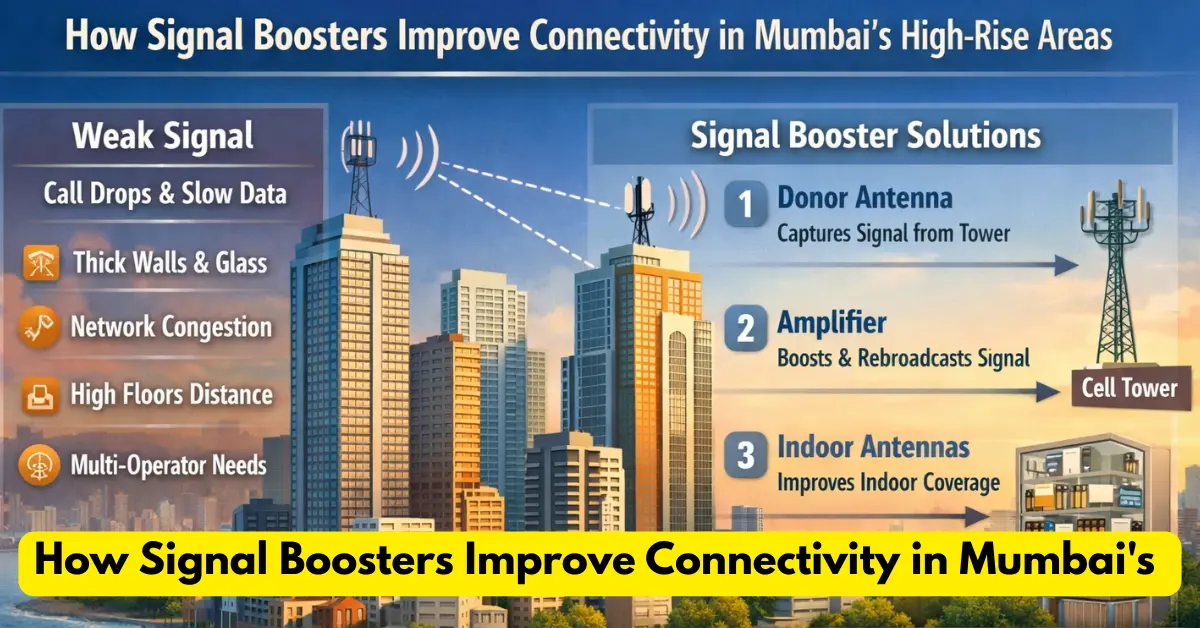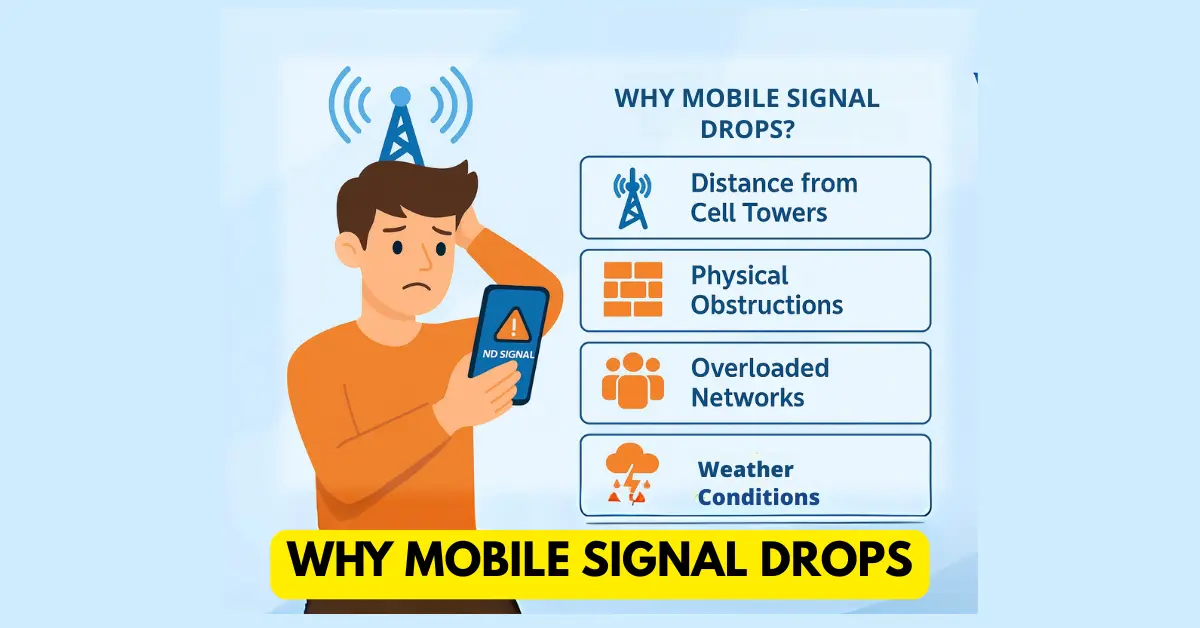
Ever wondered why your phone shows “full bars” but calls still drop? That’s because those signal bars don’t always tell the real story.
To truly measure how strong or weak your mobile signal is, you need to check your network strength in dBm (decibel milliwatts) — a more accurate way to analyze signal quality.
In this guide, we’ll explain how to check your mobile network strength on both Android and iPhone, what dBm means, and how to improve poor signal strength.
📊 What is Mobile Network Signal Strength (dBm)?
Mobile network strength is measured in dBm (decibel milliwatts) — a unit that shows how powerful your phone’s received signal is.
Here’s a quick breakdown:
Signal Strength (dBm) Quality Description
-50 to -70 dBm Excellent Strong signal, clear calls & fast data
-70 to -85 dBm Good Stable connection, minor fluctuations
-85 to -100 dBm Fair Average quality, occasional drops
-100 to -120 dBm Poor Weak signal, slow data, dropped calls
Below -120 dBm Very Poor Likely no network or call issues
💡 Note: The closer to -50, the better your signal is.
📲 How to Check Mobile Network Strength on Android
Most Android phones allow you to check detailed network information easily. Here’s how:
✅ Method 1: Using Hidden Phone Settings (Field Test Mode)
Open the Phone Dialer app.
Dial this code: – *#*#4636#*#*
Tap “Phone information”.
Scroll down and find “Signal Strength.”
You’ll see values like -65 dBm or -95 dBm.
That’s your real-time mobile signal strength in dBm.
✅ Method 2: Through Network Settings (Some Brands)
For certain phones like Samsung, Realme, or Xiaomi, you can also check:
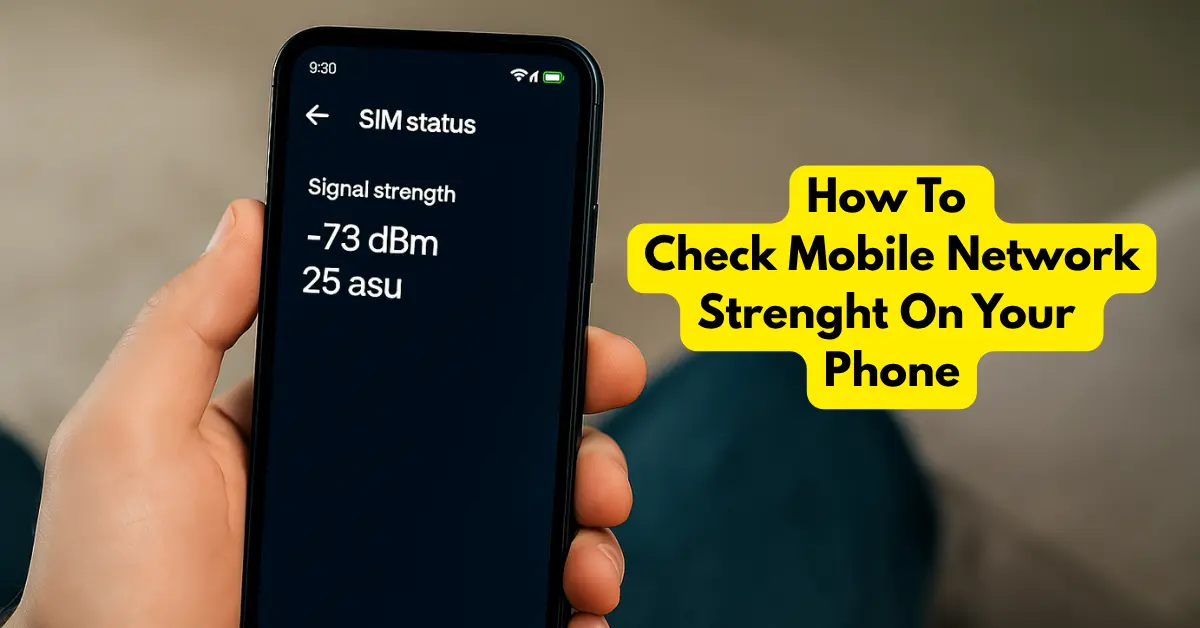
Go to Settings → About phone → Status → SIM status.
Look for Signal strength.
You’ll see readings in dBm and asu (Arbitrary Strength Unit).
✅ Method 3: Using a Network Strength App
You can also download apps from Google Play Store like:
Network Cell Info Lite
OpenSignal
NetMonster
These apps show detailed signal strength, cell tower info, and coverage maps — ideal for advanced users.
🍏 How to Check Mobile Network Strength on iPhone
Apple doesn’t show dBm values directly in the settings, but you can still access it through Field Test Mode.
✅ Steps to Check on iPhone
Open the Phone app.
Dial this code and press Call: *3001#12345#*
This opens Field Test Mode.
Go to Serving Cell Measurements or LTE RSRP section.
Find values like RSRP -70 dBm or RSRP -95 dBm.
👉 The closer to -70, the better your network signal.
You can also go to: Settings → Cellular → Network Selection to check which network you’re connected to and compare signal bars when switching manually.
Read More: – Why My Signal Drops
📶 Why Check Signal Strength in dBm?
Relying only on the signal bars can be misleading.
Checking signal strength in dBm helps you:
Identify network coverage issues in your area.
Decide if you need a mobile signal booster.
Compare different SIM cards or networks.
Troubleshoot slow internet or dropped calls.
🏠 How to Improve Weak Mobile Signal
If your phone shows a weak signal (like -100 dBm or worse), here are some practical fixes:
✅ 1. Move to an Open Area
Walls, metal roofs, or basements block signals. Step outside or near a window.
✅ 2. Switch to 4G/5G Manually
In your phone’s Network Settings, choose 4G/5G preferred mode for better coverage.
✅ 3. Restart or Reinsert SIM Card
Simple but effective — this refreshes your connection to the nearest tower.
✅ 4. Use Wi-Fi Calling
Enable Wi-Fi Calling to make calls using your home internet instead of the mobile network.
✅ 5. Use a Mobile Signal Amplifier
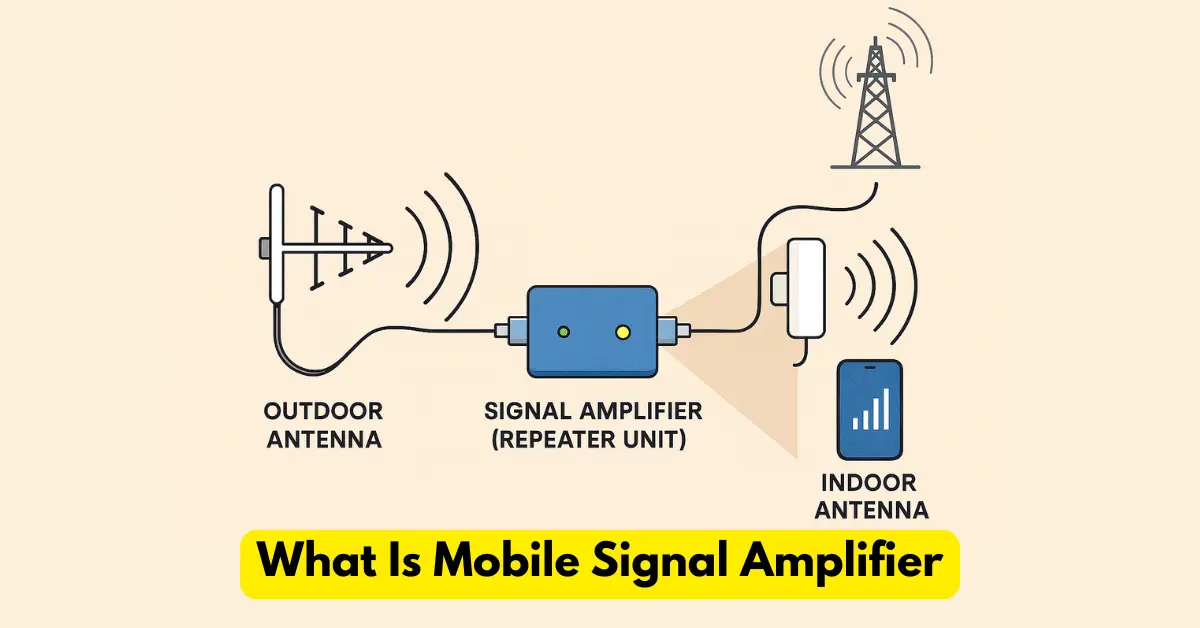
If your area consistently has poor network coverage, a mobile signal amplifier (or booster) can significantly improve connectivity indoors.
A mobile signal amplifier (also known as a signal booster or repeater) captures weak mobile signals and strengthens them for your home or office.
For details, check What is a Mobile Signal Amplifier?
If you’re on 4G or 5G, you may see slightly different terms:
Term Meaning Ideal Value
RSRP Reference Signal Received Power -70 dBm or higher
RSRQ Reference Signal Received Quality -10 dB or better
SINR Signal to Interference + Noise Ratio Above 20 dB = Excellent
RSSI Received Signal Strength Indicator Higher = Better (less accurate for LTE)
These metrics are useful for engineers and enthusiasts testing network quality.
🔍 Quick Summary
Platform Method Code/App Output
Android Field Test Mode *#*#4636#*#* Shows dBm
Android (Settings) SIM Status No code Shows dBm & asu
iPhone Field Test Mode *3001#12345#* Shows RSRP (dBm)
Apps OpenSignal / NetMonster Play Store Full analysis
🧭 Final Thoughts
Knowing your real mobile network strength helps you understand why your data is slow or calls are dropping — even when signal bars look full.
Next time you face a poor connection, check your dBm readings, try the fixes above, and if needed, consider using a signal amplifier for a permanent solution.